 MacPip
Your kit
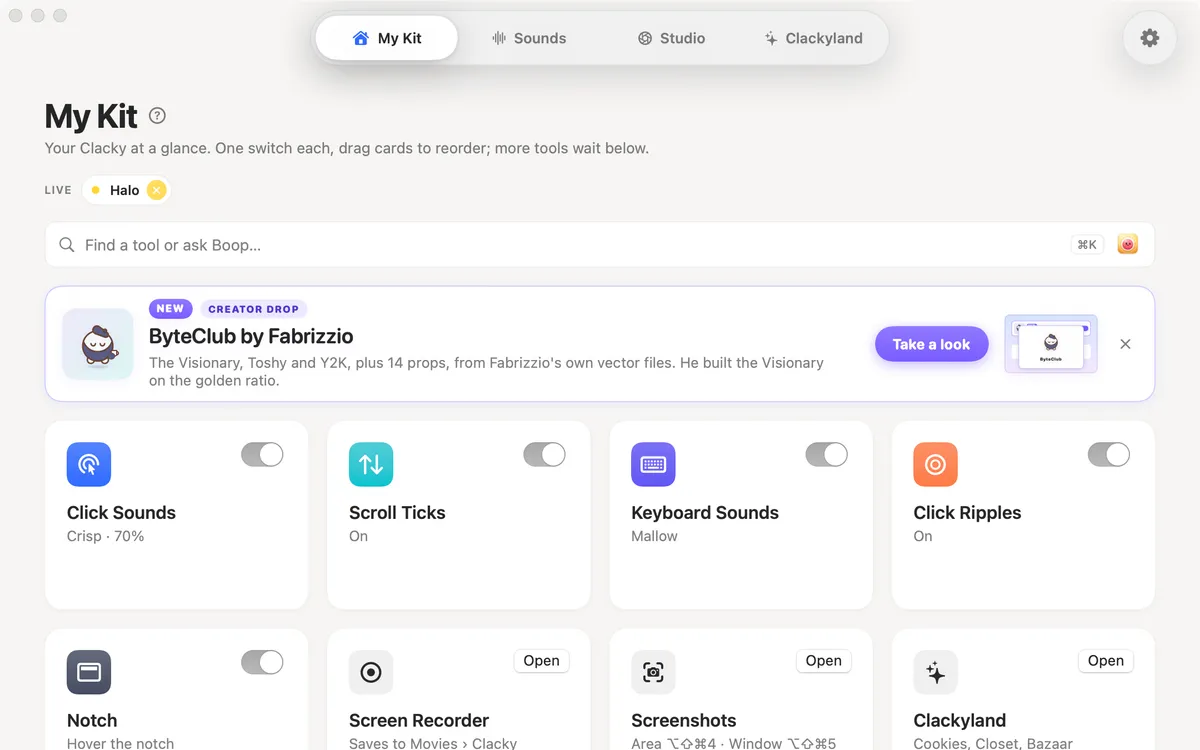
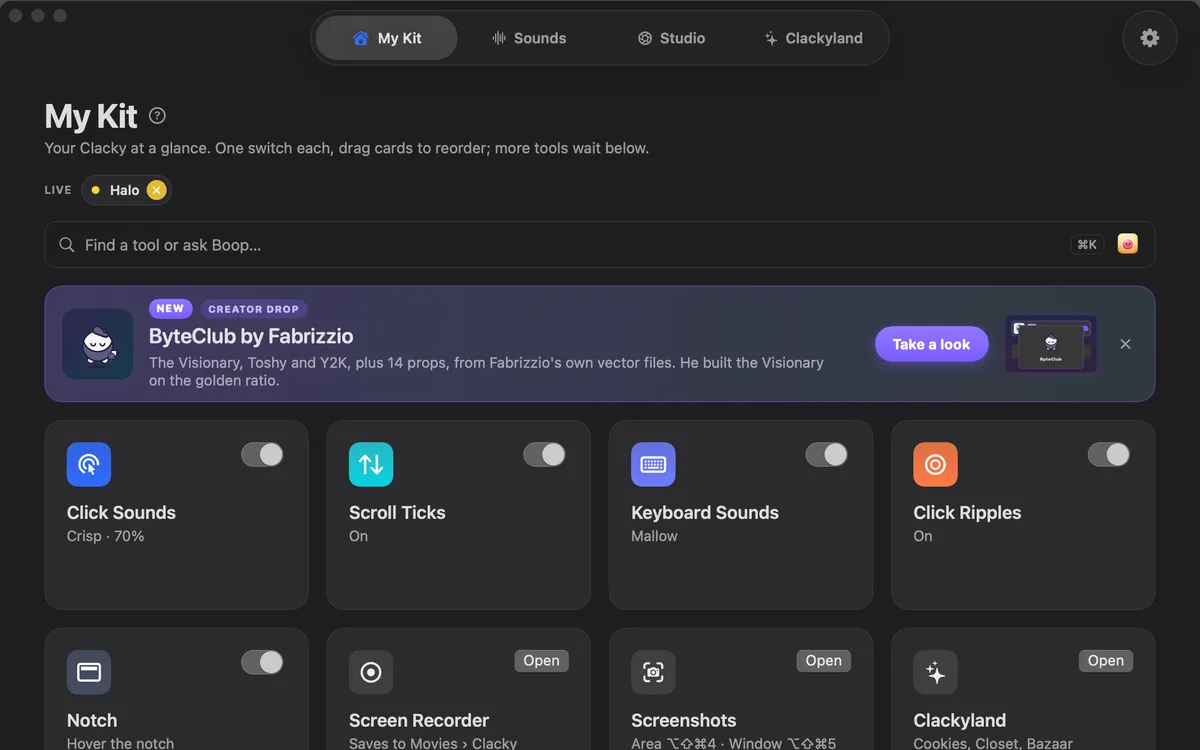
Eight tiles on one home, one switch each: Click Sounds, Scroll Ticks, Keyboard Sounds, Click Ripples, Notch, Screen Recorder, Screenshots and Clackyland.
What it is
My Kit is the first place in the Clacky window: your whole Clacky at a glance, as eight tiles. Click Sounds, Scroll Ticks, Keyboard Sounds, Click Ripples, Notch, Screen Recorder, Screenshots and Clackyland each have one switch.
Turn something off and it does nothing until you turn it back on. There is nothing to set up first.
Want more? Sounds, Studio and Clackyland each have their own place in the window, one click away, and the search at the top finds any setting by name.
How to use it
Open Clacky
Click the Clacky icon in the menu bar and open the Clacky window. It opens on My Kit; the pill at the top switches between the places.
Flip a switch
Each tile has its switch right on it. On means it works at once.
Find anything else
Type in the search at the top, or press ⌘K, to find any setting by name, or ask Boop in plain words.
Tips
- While the window is in front, ⌘1 brings you back to My Kit, ⌘2 opens Sounds, ⌘3 Studio and ⌘4 Clackyland.
- Settings → General → Card theme changes how the tiles look.
Questions
- Do I have to use everything?
- No. Every tile has its own switch. Turn off what you don’t want.
- Where are the screenshot and recording tools?
- The Screen Recorder and Screenshots tiles switch them on. Studio, one click away in the pill, is where you record, capture and edit.
Make something on your Mac today.
Every feature. $4.99 once.