 MacPip
What it is
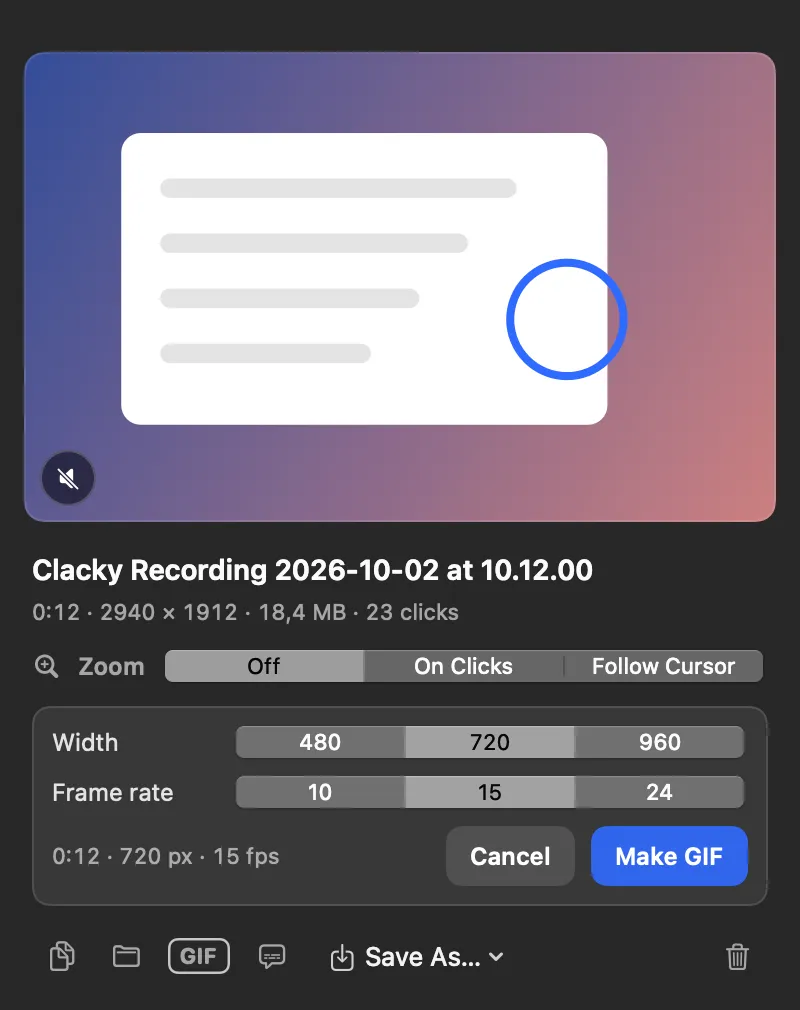
GIF Export turns a recording into a small, silent, looping GIF, good for docs, READMEs, chats and bug reports.
Pick a width of 480, 720 or 960 px and 10, 15 or 24 frames a second. Long recordings get big fast, so Clacky can keep only the first 30 seconds. The GIF is saved next to the video.
How to use it
Open the recording
Stop a recording, or open Recordings and click one. Its preview opens.
Click GIF
Click the GIF button in the preview.
Pick the size
Choose a Width and a Frame rate, and whether to keep only the first 30 s.
Make it
Click Make GIF. It’s saved next to the video.
Tips
- In Studio, Export as GIF makes a GIF of your edited video, cuts and zooms included.
- GIF Export is also in Studio, under More for recording.
Questions
- Does the GIF have sound?
- No. GIFs can’t carry sound, so the GIF is silent.
- How long can a GIF be?
- Clacky offers to keep the first 30 seconds of a long recording, since long GIFs get very big. Studio’s GIF export uses the first 30 seconds of the edit.
Make something on your Mac today.
Every feature. $4.99 once.